
Agency admin guide
Running Tiercel for your agency.
Short steps for the people who manage the app: adding and removing officers, seats, local laws, the agency profile and checklist emails. Each task takes a minute or two. Printable copy (PDF).
Contents
- Getting into the agency console
- Add officers
- Remove an officer who leaves
- Seats
- Local laws
- Fix or remove a local law
- Agency profile: name, logo, motto
- Add a backup admin
- Checklist emails that open in Outlook
- Approve or decline new features
- When officers see your changes
- Troubleshooting
- When to contact Raptor
- Copies of the app
1. Getting into the agency console
The agency console is where admins manage the app. Officers never see it.
- Go to app.tierceldocs.com/agency. (On the website, it's the Agency admin link at the top.)
- Type your work email and choose Email me a sign-in code.
- Type the 6-digit code from your email. It works for 10 minutes.
The tabs across the top are Overview and seats, Officers, Local laws, Agency profile, Admins, History and Help.
Shortcut from the app: on the Forms page, admins have an Agency console button that opens this console in a new tab. Officers who aren't admins don't see it.
Never put case information in the console. No names, dates of birth, incident numbers or facts. The console holds only who can use the app, your letterhead and your local laws.
2. Add officers
- Open the Officers tab.
- Under Add officers, type their work emails. Put each one on its own line, or separate them with commas.
- Click Add officers.
- Each new officer gets an invite email from Tiercel with a big link to the app, how to bookmark it on a computer or phone, and how to sign in. It says you added them.
- If someone didn't get it, check their junk or spam folder, or click Send invite again next to their name (it shows until they first sign in). You can also copy the note under Tell new officers how to sign in into a roll-call note.
- When only officers on your list may sign in, an invite works for 5 days. The Status column shows when it expires. Someone who hasn't signed in by then is turned away until you click Send invite again, which gives them another 5 days. Once an officer has signed in, nothing runs out.
Adding a whole roster at once
- Download the officer spreadsheet (also linked on the Officers tab).
- On its Officers tab, put one person per row: their work email, and Yes under Agency admin for anyone who should also manage this console. Everyone else is No.
- Back on the console's Officers tab, choose the file under Or upload the officer spreadsheet and click Upload and check.
- Check the list it shows. Nothing is added until you click Add these people.
New agency? You can fill in the same spreadsheet and send it to Raptor instead, and we'll load it for you.
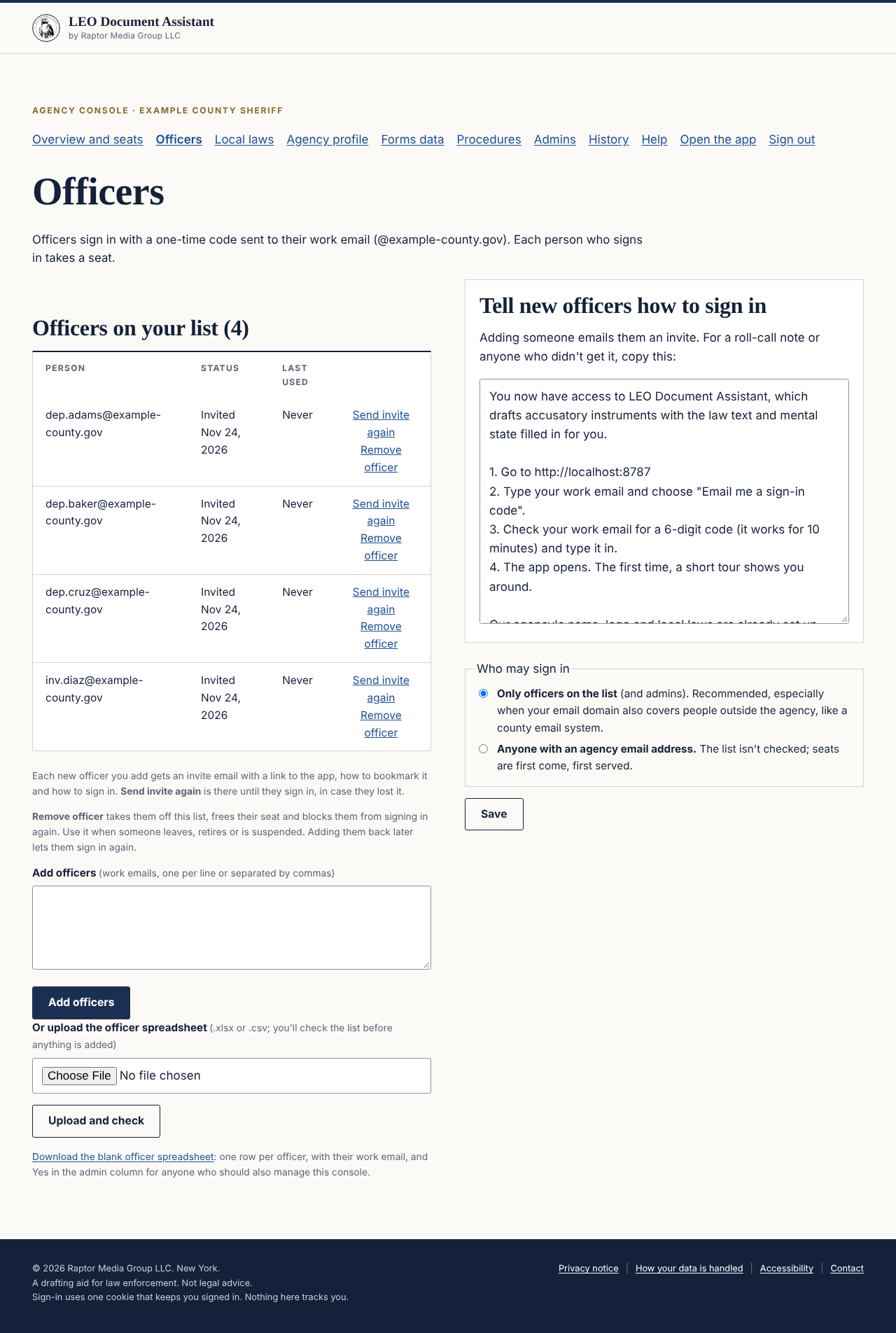
Who may sign in. Keep this set to Only officers on the list. That's the safe choice, especially if your email system also covers people outside the agency, such as a county-wide domain. Admins can always sign in, whether or not they're on the list.
3. Remove an officer who leaves
Do this when someone retires, resigns, transfers out, or is suspended.
- Open the Officers tab.
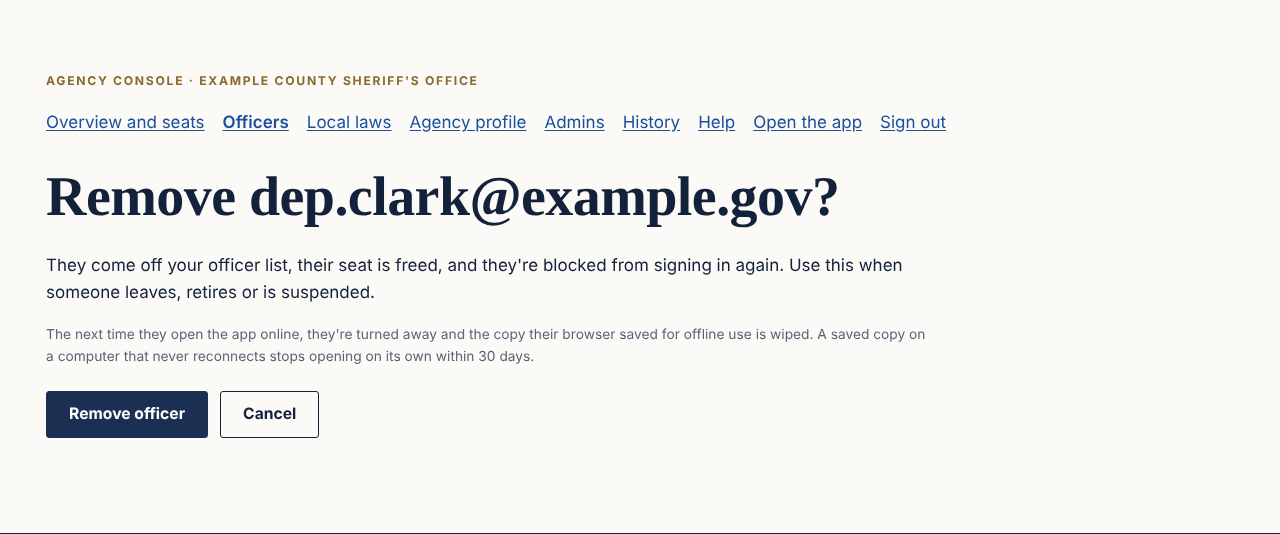
- Click Remove officer next to their email.
- Read the check screen, then click Remove officer again to confirm.
That one step takes them off the list, frees their seat, and blocks them from signing in. If they have the app open right now, they're turned away the next time they open or reload it.
Coming back? If they return to duty, add their email again under Add officers. That lifts the block.
The next time they open the app online, they're turned away and the copy their browser saved for offline use is wiped. A saved copy on a computer that never reconnects stops opening on its own within 30 days.
4. Seats
A seat is one person using the app. Your license comes with a set number. Someone takes a seat the first time they sign in and keeps it until an admin releases it, blocks them or removes them. Seats never free themselves, however long they go unused. Raptor can also free a seat at your agency's request.
The Overview and seats tab shows your license, how many seats are in use, and every person who has held one.
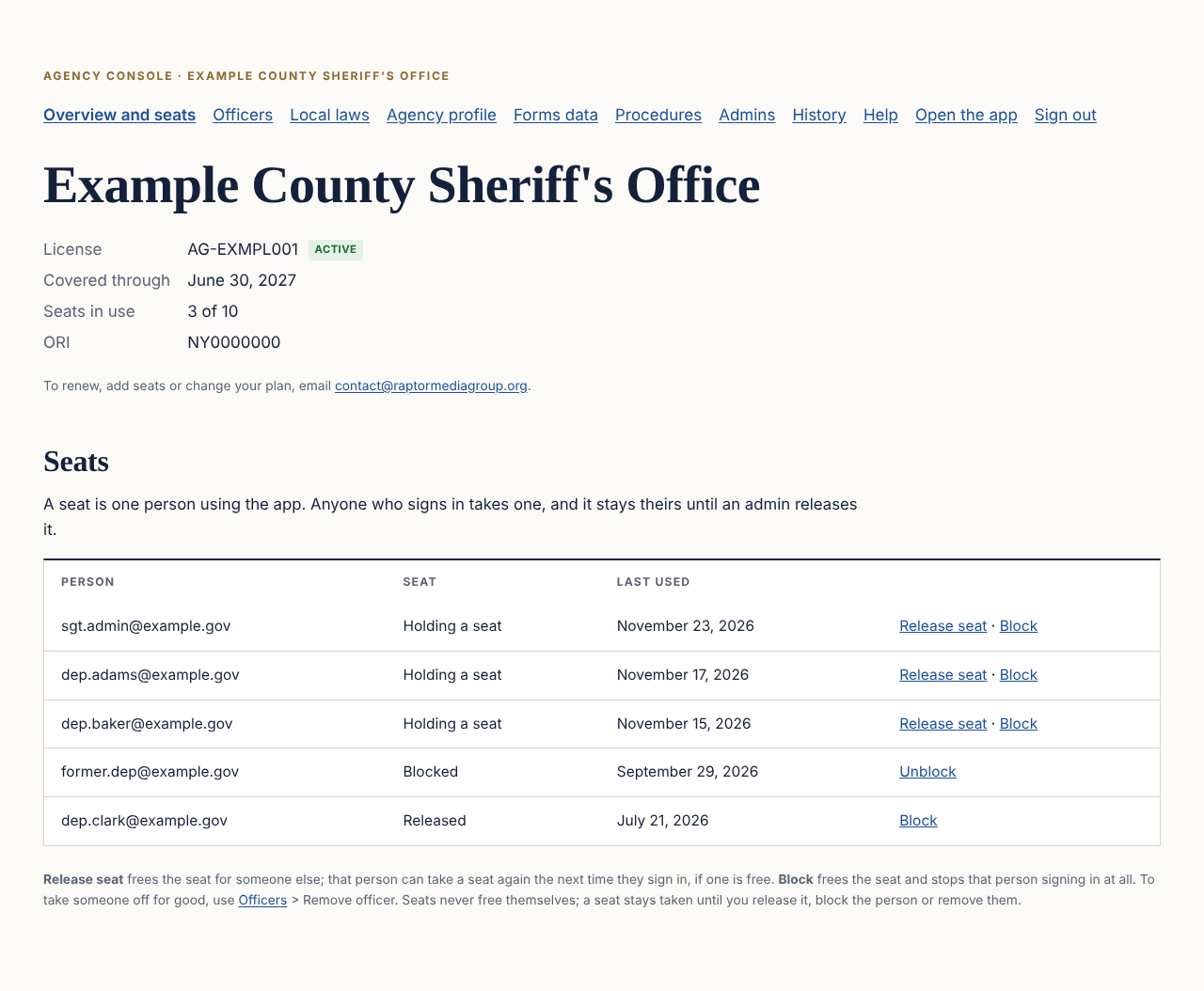
| Button | What it does | Use it when |
|---|---|---|
| Release seat | Frees the seat. The person can take one again the next time they sign in, if one is free. | Seats are full and someone rarely uses the app. |
| Block | Frees the seat and stops that person signing in, but leaves them on the officer list. | A short-term hold, for example while something is looked into. |
| Remove officer (Officers tab) | Takes them off the list, frees the seat and blocks them. | Someone leaves the agency. This is the one to use most of the time. |
| Unblock | Lets a blocked person sign in again. | The hold is over. |
| Reset PIN | Clears the officer's PIN. They pick a new one the next time they open the app. Everything they saved with the old PIN is deleted. | An officer forgot their PIN. |
Reset a forgotten PIN
Each officer picks a PIN the first time they sign in. It unlocks the cases and compliance checklists they save in the app. Nobody can look up a forgotten PIN, including you and Raptor. If an officer forgets theirs, press Reset PIN next to their name on the Overview and seats tab, then confirm.
Warning: If this PIN is forgotten and has to be reset, every case and compliance checklist saved with it is deleted and can't be recovered by anyone, including Raptor Media Group. Make sure the officer has truly forgotten it before you reset it.
When every seat is taken, the next officer who signs in is turned away with "All of your agency's seats are in use." Release a seat for someone who no longer uses the app, or email Raptor to add seats.
5. Local laws
Local laws are the town, village, city and county laws your officers enforce. Once you add them, officers pick them in the app just like a Penal Law charge, with the law text filled in. There are three ways to add them.
Copy the law text exactly, word for word, from the adopted law: the certified copy from the clerk, or the municipality's official code. Don't retype it, shorten it or fix its spelling. The text prints on the accusatory instrument as you enter it.
A. Add one law
- Open the Local laws tab and go to Add one law.
- Fill in the boxes. The table below explains each one.
- Click Add law. If something needs fixing, the page says what, and keeps everything you typed.
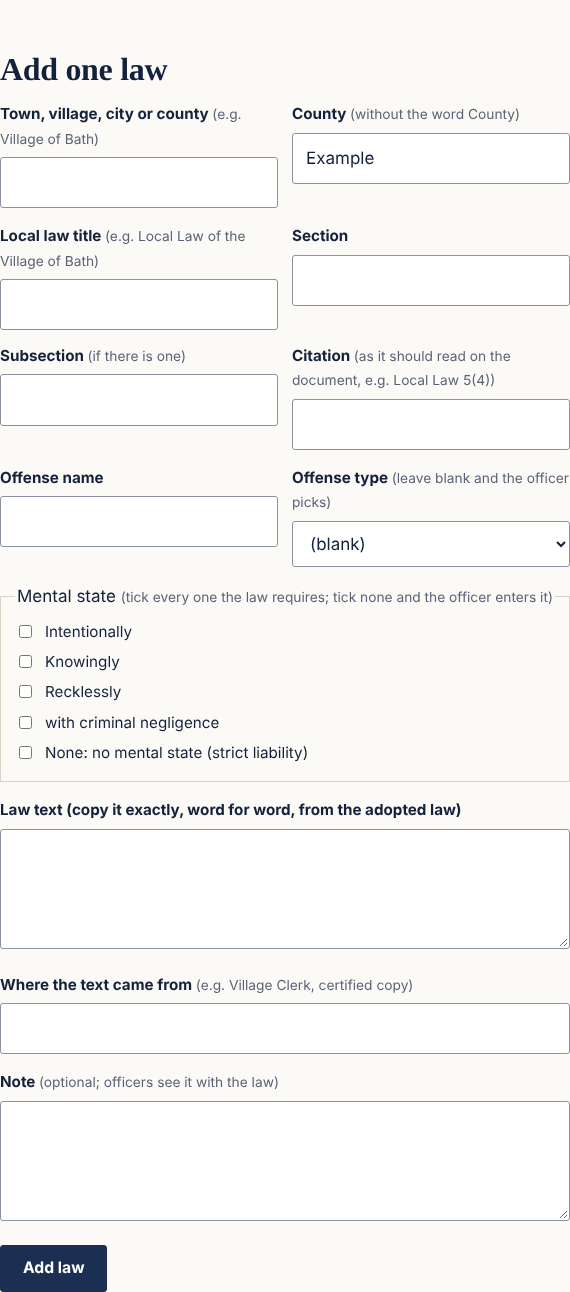
| Box | What to put | Example |
|---|---|---|
| Town, village, city or county | Who adopted the law. Spell it the same way every time. | Village of Bath |
| County | The county, without the word "County". | Steuben |
| Local law title | The law or code it comes from. | Local Law of the County of Steuben |
| Section and Subsection | Exactly as numbered in the law. Keep any zeros. | 5 and 4 |
| Citation | How the charge should read on the document, down to the subsection. | Local Law 5(4) |
| Offense name | The name of the offense. | Social Host Law |
| Offense type | Pick from the list. A violation has no class. Leave it blank only if the officer should pick. | Violation |
| Mental state | Tick every mental state the law's text requires. Tick None for strict liability. Tick nothing if it isn't settled; the officer then enters it. | Knowingly |
| Law text | The text of the law, copied exactly. | |
| Where the text came from | So anyone can check it later. | County Clerk, certified copy |
| Note | Optional. Officers see it with the law. | Applies only within village limits |
Not sure of a mental state? Leave it unticked so the officer enters it, and ask your DA's office. Don't guess.
B. Add many laws with the spreadsheet
This is the easy way to load a whole town or village code.
- On the Local laws tab, click Download the local laws spreadsheet, or download it here.
- Open it in Excel and go to the Local laws tab at the bottom. Fill in one row per law. Click any cell to see a tip for that column. Offense type and Mental state have drop-down lists. Columns marked * are required.
- Save the file. Keep it as .xlsx; CSV works too.
- Back in the console, under Add laws from a spreadsheet or pack, choose the file and click Upload and check.
- The Check before adding screen lists every law it read. Look over the citations and offense types, then click Add these laws.
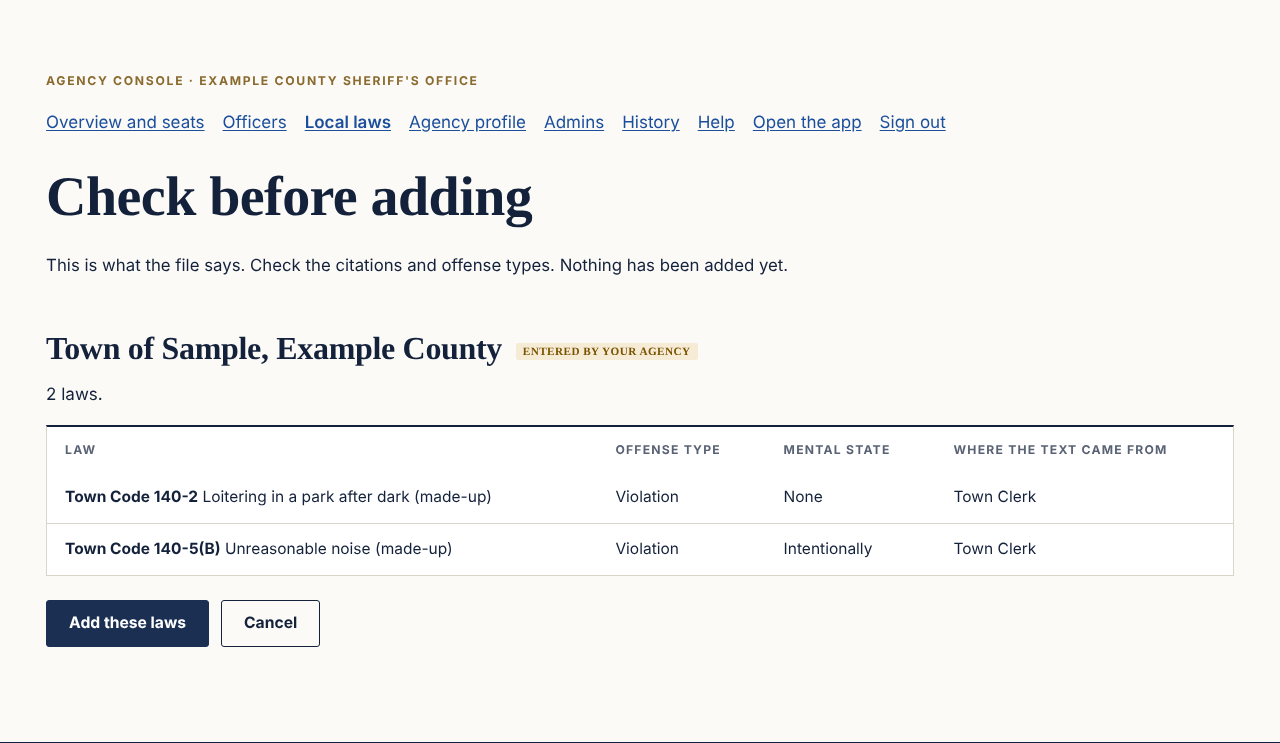
- If a row has a problem, nothing is added, and the console says which row to fix ("Row 7: Law text is required"). Fix it in Excel and upload again.
- Uploading a spreadsheet for a town replaces that town's laws in the console. The check screen warns you when it will. Keep your spreadsheet: to add a law later, add a row and upload the whole file again.
- One spreadsheet can hold several towns. Each row says which town it belongs to.
C. Upload a law pack from Raptor
Raptor checks some local laws against the adopted text and sends them as a law pack, a file that ends in .json. The Steuben County pack is one of them.
- Save the pack file from Raptor's email to your computer.
- On the Local laws tab, under Add laws from a spreadsheet or pack, choose the file and click Upload and check.
- The check screen shows Raptor-issued, signature checked. Click Add these laws.
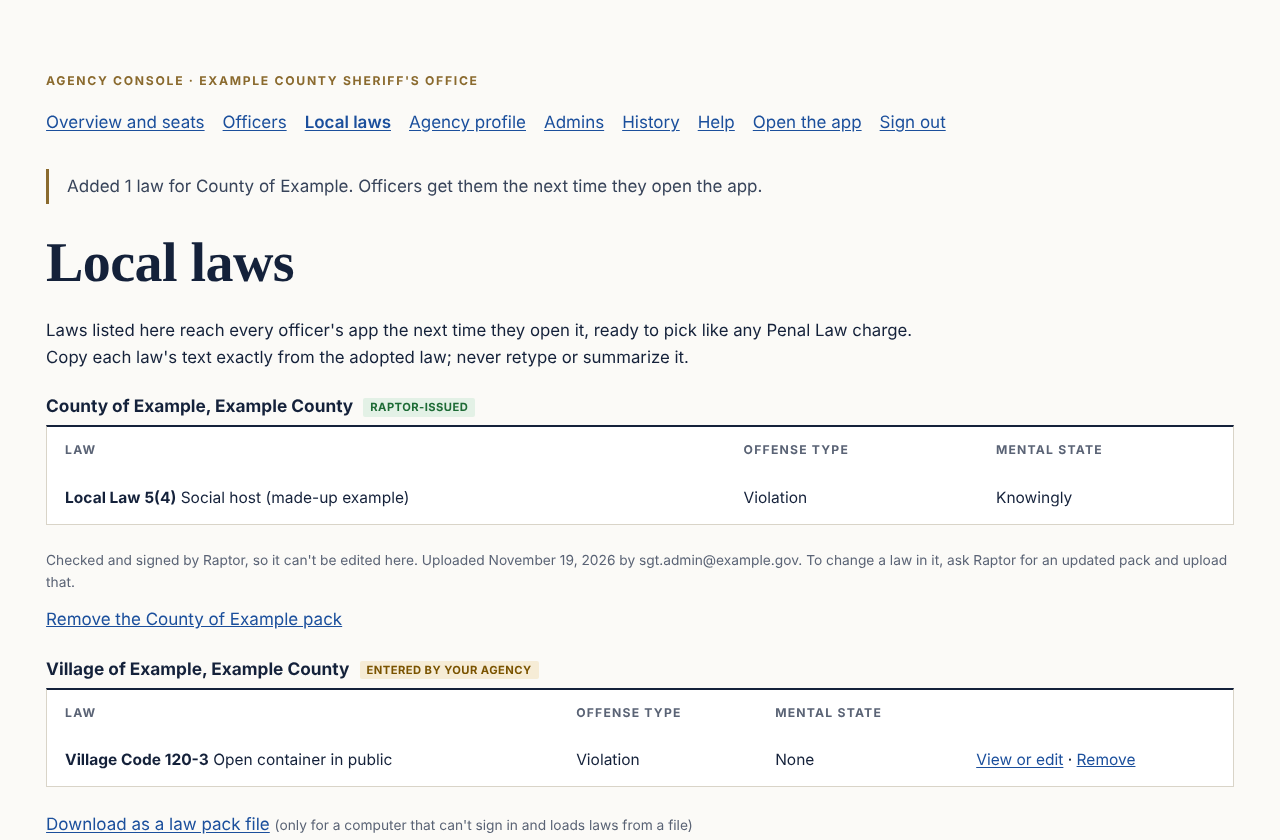
A Raptor pack is sealed with Raptor's digital signature, so nobody can change its text without it showing. It can't be edited in the console. If a law in it needs changing, ask Raptor for an updated pack and upload that; it replaces the old one. If a file claims to be from Raptor but the signature doesn't match, the console refuses it.
6. Fix or remove a local law
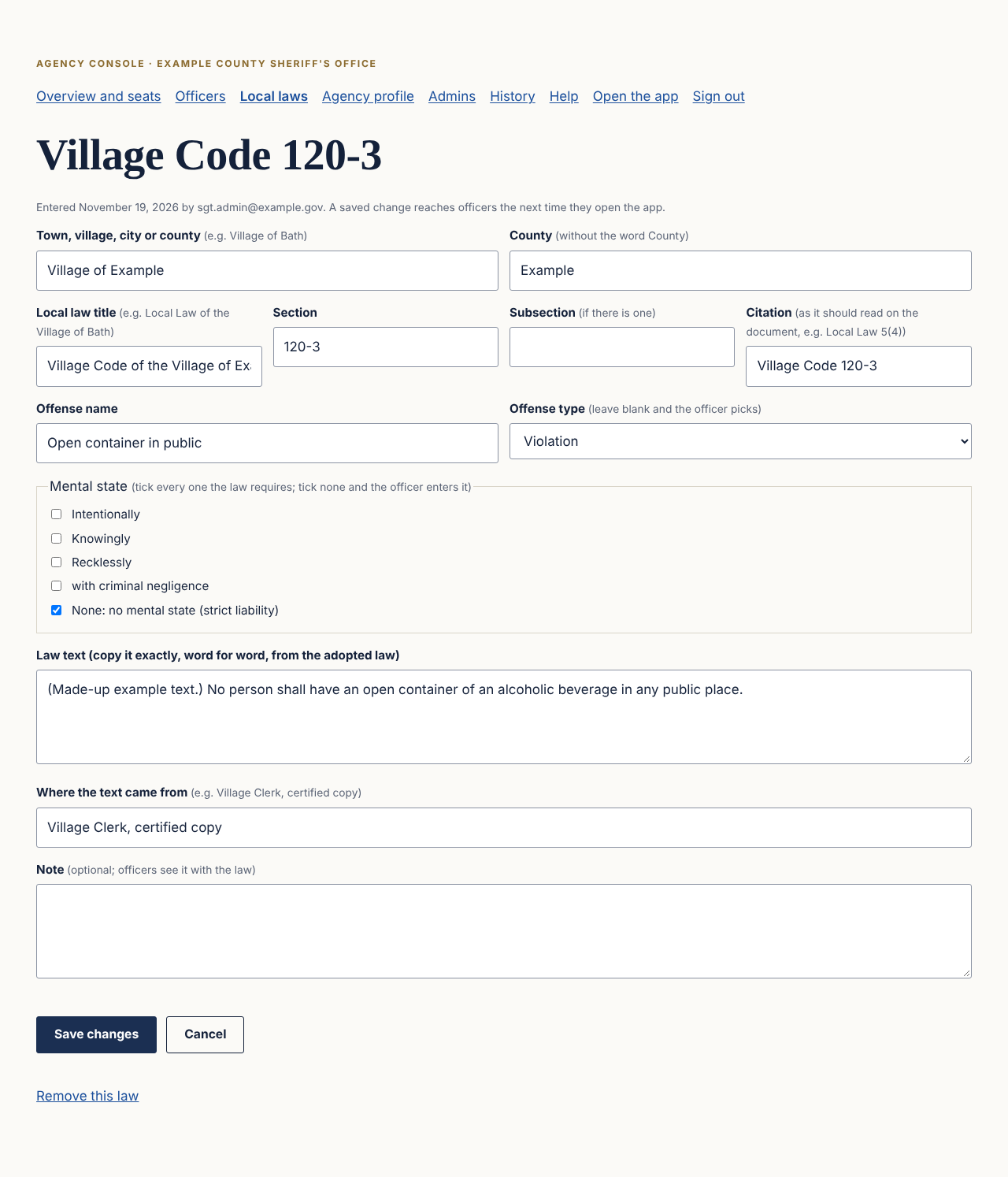
- Fix a typo or update a law: on the Local laws tab, click View or edit next to it. Change what's needed and click Save changes.
- Remove a law that was repealed: click Remove next to it, then confirm. To bring it back you'd have to enter it again.
- Remove a Raptor pack: click Remove the … pack under it, then confirm. You can upload the file again later.
7. Agency profile: name, logo, motto
The agency profile is the letterhead on every document your officers print. Officers can't change it in the app.
- Open the Agency profile tab.
- Change the agency name, the county (without the word "County"), or the motto. The motto prints at the foot of each page.
- For a new logo, choose a PNG or JPEG file up to 700 KB. A square image with a plain background prints best.
- Click Save profile.
8. Add a backup admin
Have at least two admins: for example, the sergeant who runs the app and a lieutenant or IT contact. If the only admin retires or loses email access, nobody at your agency can manage the app until Raptor steps in.
- Open the Admins tab.
- Type their work email and click Add admin.
- They sign in the usual way and go to app.tierceldocs.com/agency.
Admins can get into the console even when every seat is full, or when they aren't on the officer list. You can't remove yourself as an admin; ask another admin to do it.
9. Checklist emails that open in Outlook
If Forms data > How your agency's email opens is set to Outlook desktop app, pressing Email to supervisor on the Compliance Checklist downloads a ready email file. The officer opens that file and it appears in Outlook as a new email, already addressed, to send. A web page can't open a downloaded file by itself, but Edge and Chrome can be told to open this kind of file automatically. Then the email pops up in Outlook with no extra click.
On one computer (any officer can do this)
- Press Email to supervisor once, so an email file downloads.
- In Edge or Chrome, open the downloads list: the download arrow at the top right of the browser.
- Point at Compliance checklist email.eml and click the three dots next to it (or right-click it).
- Choose Always open files of this type.
That's it for that browser on that computer. To undo it later, use the same menu again, or in the browser's settings go to Downloads and clear the files that open automatically. Each browser and each computer is set up separately, so shared patrol car laptops need it done once each. The app shows officers a short tip about this under the Email to supervisor button for their first three emails on a computer.
For IT: turn it on for every computer at once
Give this section to whoever manages your agency's computers. Both browsers have a policy, AutoOpenFileTypes, that lists file types to open automatically after download. Add eml (no dot). Optionally also set AutoOpenAllowedForURLs to app.tierceldocs.com, so only email files from the app open automatically.
| Browser | Group Policy (Computer Configuration > Administrative Templates) | Registry (string values named 1, 2, 3 …) |
|---|---|---|
| Microsoft Edge | Microsoft Edge > "List of file types that should be automatically opened on download": add eml.Optional: "URLs where AutoOpenFileTypes can apply": add app.tierceldocs.com. | HKLM\SOFTWARE\Policies\Microsoft\Edge\AutoOpenFileTypes, value 1 (REG_SZ) = emlOptional: HKLM\SOFTWARE\Policies\Microsoft\Edge\AutoOpenAllowedForURLs, value 1 = app.tierceldocs.com |
| Google Chrome | Google > Google Chrome > "List of file types that should be automatically opened on download": add eml.Optional: "URLs where AutoOpenFileTypes can apply": add app.tierceldocs.com. | HKLM\SOFTWARE\Policies\Google\Chrome\AutoOpenFileTypes, value 1 (REG_SZ) = emlOptional: HKLM\SOFTWARE\Policies\Google\Chrome\AutoOpenAllowedForURLs, value 1 = app.tierceldocs.com |
- If the key already has values (other file types), add
emlas the next number instead of replacing1. - The app makes the email file inside the browser, so the download's address starts with
blob:https://app.tierceldocs.com/. If you set the optionalAutoOpenAllowedForURLsand the email no longer opens by itself, remove that setting and keep justAutoOpenFileTypes. Try it on one computer first. - Group Policy needs the Edge or Chrome administrative templates (ADMX) installed. Intune and other device management tools have the same settings under the same names.
- Microsoft says Edge applies
AutoOpenFileTypesonly on Windows computers joined to a domain or Microsoft Entra ID, or enrolled in device management. Most agency computers are. Chrome may have the same limit. - Downloaded files still go through the browser's safety checks (SmartScreen or Safe Browsing) before they open.
- To check it worked, open
edge://policyorchrome://policyand look forAutoOpenFileTypes.
10. Approve or decline new features
When Raptor adds a new feature to the app, it stays off for your officers until an admin at your agency approves it. Every admin gets an email from Raptor Media Group that describes the feature and links to the console.
- Click the link in the email, or open the Feature updates tab.
- Read what the feature does. It's already on in your own app, so you can try it first.
- Click Approve to give it to your officers, or Decline to keep it off.
- One admin's answer covers the whole agency. Any admin can change it later on the same tab.
- If nobody answers, the feature stays off. You get one reminder email after 7 days.
- Bug fixes, printing fixes and law updates aren't new features. They reach everyone without asking.
11. When officers see your changes
| You change | Officers see it |
|---|---|
| Local laws: added, edited, uploaded or removed | The next time they open the app. If it's already open, they close it and open it again. |
| Agency profile | The next time they open the app. An app you have open yourself updates right away. |
| Remove officer, Block, Release seat | The next time they open or reload the app. |
| Reset PIN | The next time they open or reload the app, they're asked to pick a new PIN. |
| Approve or decline a new feature | The next time they open the app. |
| Add officers | Right away. They can sign in as soon as you click Add officers. |
In the app, officers find your laws in the charge search. They can't remove or change them.
The History tab lists every change made in the console: who made it and when, in Eastern time.
12. Troubleshooting
"I never got the sign-in code."
- Check the junk or spam folder. The email comes from [email protected]. Ask IT to allow that address.
- Check the email address for typos. Codes go only to the address typed in.
- Codes last 10 minutes. After that, ask for a new one.
"Your agency hasn't added you yet."
Their email isn't on the Officers list, or it's spelled differently. Add it exactly as they type it to sign in.
"Access removed."
They were blocked or removed. If that was a mistake, add them again on the Officers tab, or click Unblock on the Overview tab.
"All of your agency's seats are in use."
Release a seat on the Overview tab for someone who no longer uses the app, or email Raptor for more seats.
A new law isn't showing up in the app.
- Ask the officer to close the app completely and open it again.
- Check the Local laws tab: is the law listed, under the right town?
- If the app says a pack "failed the check," email Raptor.
The spreadsheet won't upload.
- Read the message: it names the row and what's missing. Fix that row and upload the whole file again.
- "Missing the … column": the first row of headings was changed. Download a fresh template and copy your rows into it.
- An old .xls file: in Excel, choose File > Save As > Excel Workbook (.xlsx).
- "Already listed under …": the same law (same title and citation) is already under another town. A law can only be listed once.
"This law pack's signature doesn't match."
The file was changed after Raptor signed it, or it isn't from Raptor. Don't use it. Ask Raptor for a fresh copy.
13. When to contact Raptor
Email [email protected] to renew, add seats, add another email domain (for example, if your agency changes email systems), get a local law pack checked and signed, or when something isn't working. Never send case information.
14. Copies of the app
Officers always use the app at app.tierceldocs.com. There is no version to install from a file, and nothing for IT to deploy.
- No signal. After an officer signs in online, their browser keeps a copy that opens with no signal for up to 30 days after they last opened it online. Have officers sign in once on each computer, phone or tablet before they need it in a dead zone.
- Copies don't work without signing in. A saved or emailed copy of the app page shows only "Sign in to use Tiercel." Officers can't share the app with anyone outside your agency.
- Every copy is marked. Each copy carries a copy ID that ties it to your agency's license and the officer who signed in. An officer can see it under Help, below the law date. If a copy turns up somewhere it shouldn't, Raptor can tell whose it was. The copy ID contains no case information.